Campaign Scope Message Attributes
In the Message Attributes panel on the Campaign Scope screen, you can view available message query attributes and click to enter them into your message query.
To view attributes, click the down arrow next to the label Message Attributes.
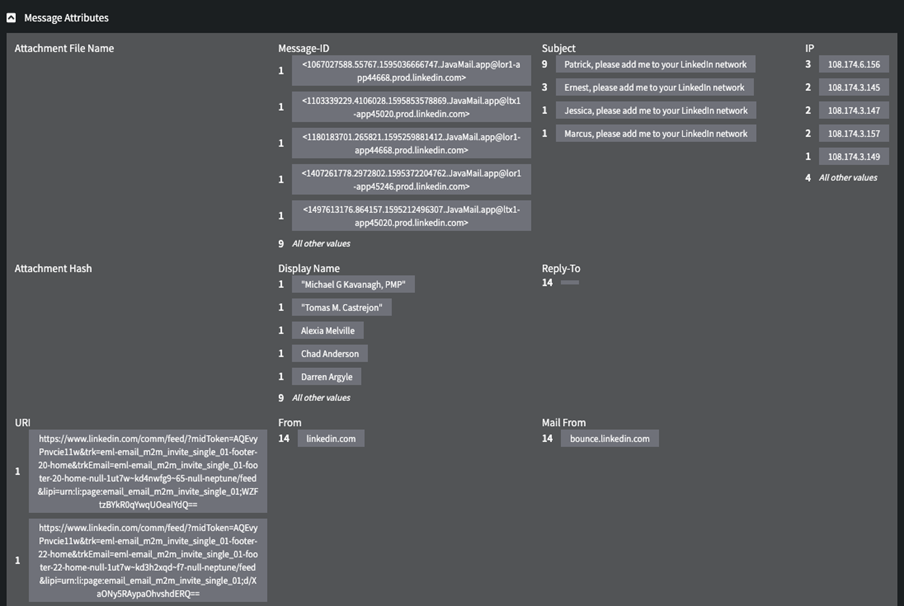
Click any of the attributes to add it to your query, and to update the nodes and links visualization at the top of the page accordingly.
For example, if you double-click Marcus, please add me to your LinkedIn network under Subject above, it appears in your message query editor as:
() AND subject: Marcus, please add me to your LinkedIn network
The visualization at the top of the page also changes to reflect the modification of your message query. To take one possible example, if adding this subject requirement to your query means that the query now matches zero messages, your visualization might be blank.